
 dude:
dude:
Hopefully teaching Theme Creator
dude:
@IamAku
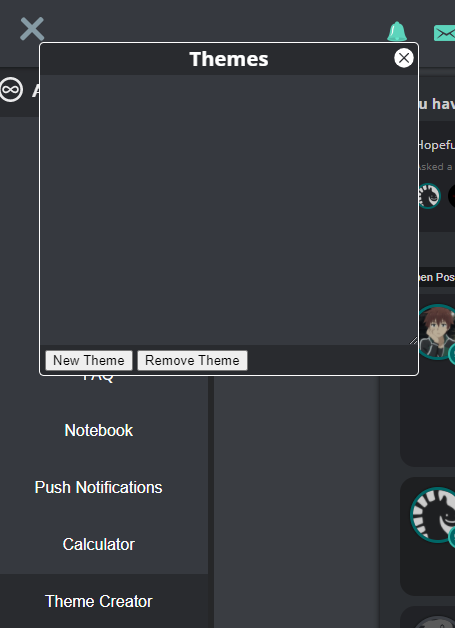
 IamAku:
I do and then after it's created I put it in this right?
 dude:
dude:
That's if you want to upload another subscribers theme
IamAku:
Oh
dude:
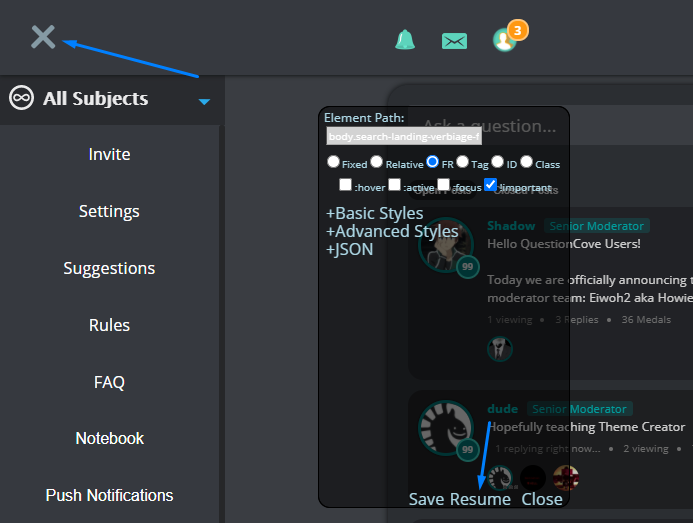
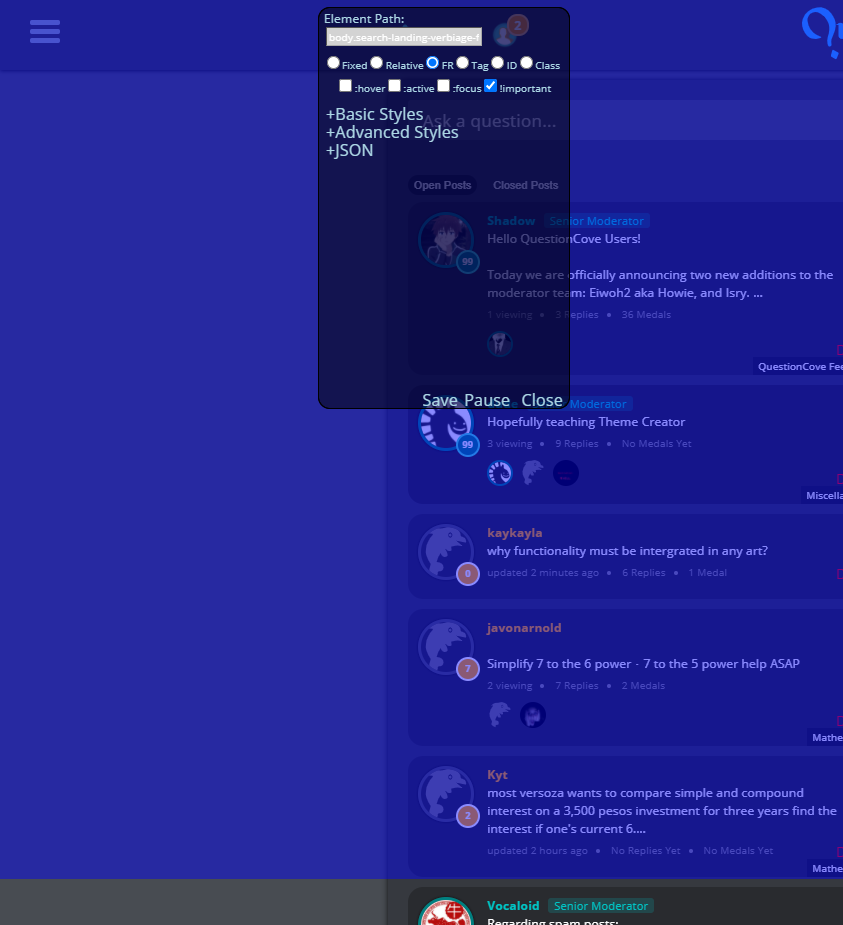
Yeah once you get to the small tool, pause it You want to get rid of the semi-transparent cover from the menu
 IamAku:
Done
 IamAku:
Alright
dude:
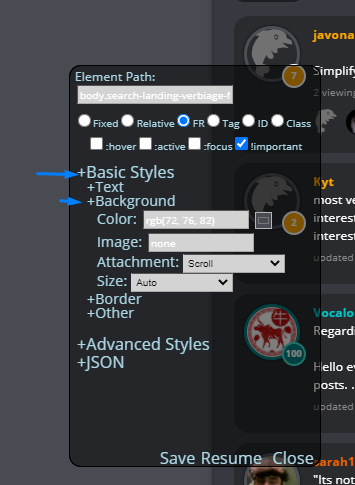
From then, in the tool go to `Basic Styles` then `Background`
 IamAku:
Alright
dude:
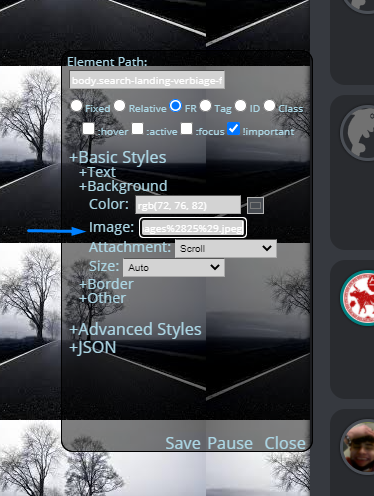
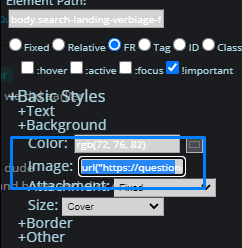
Then, go to the `Image` box and type `url('')` inside the quotes type the image link I am copying from DMs so I won't post what I put here
 IamAku:
Done
dude:
For any future viewers, if should look something like this `url('https://site.com/image.png')` It has to be an image link [Ending in .png, .jpeg, .gif... etc.]
 crystat18:
oohh
dude:
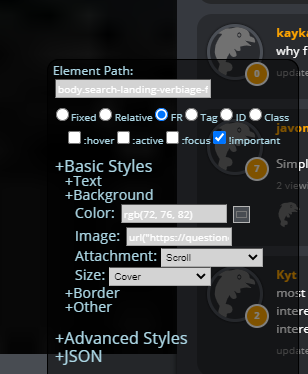
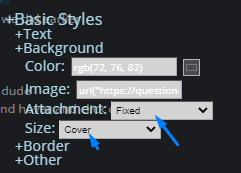
Now, depending on the image you'll need to play around with the `Attachment` and `Size` settings `Scroll` for `Attachment` usually seems the best (This loops the image throughout. If you're scrolling the image will just fully display again but in a decent quality) If you're looking to have the full size image show: I would add `Cover` to the `Size` setting These both should fill up the whole screen and show the full image Unfortunately your image is a lower quality, so it looks pixelated...
 dude:
dude:
Alternatively you can do `Fixed` for `Attachment` settings and it'll just only show the full image at all times (With the combination of `Cover` for `Size`)
IamAku:
It all just disappeared after that
dude:
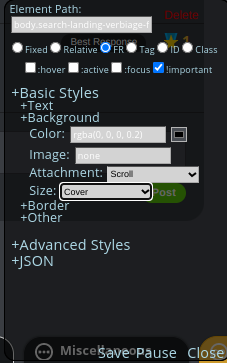
Hmm show what you have in your tool
 dude:
dude:
Looks like the image link disappeared Try doing the previous steps again Hover over the back and put in the image link
IamAku:
Alright
dude:
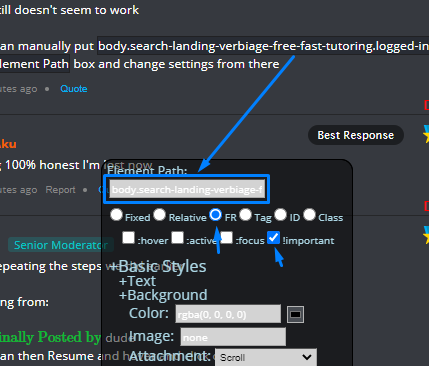
If it still doesn't seem to work You can manually put `body.search-landing-verbiage-free-fast-tutoring.logged-in` in the `Element Path` box and change settings from there
IamAku:
Being 100% honest I'm lost now
dude:
Try repeating the steps we did earlier Starting from: \(\color{#0cbb34}{\text{Originally Posted by}}\) dude You can then Resume and hover and click over this area \(\color{#0cbb34}{\text{End of Quote}}\)
IamAku:
I tried but I'm just lost ngl dude
dude:
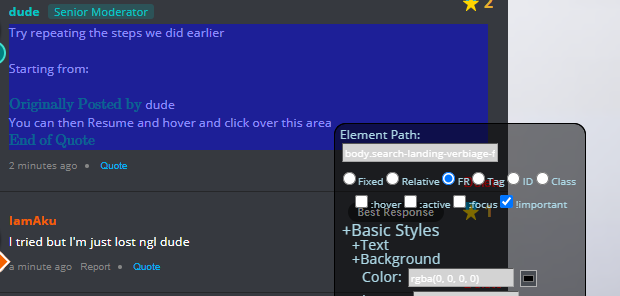
Hmm Thats fine. We can do it another way Click anywhere with the tool (It doesnt matter where)
 IamAku:
Alright
dude:
`Pause` the tool Then, copy the text I included above in that box Remember to keep the FR and `!important` boxes checked
 dude:
dude:
\(\color{#0cbb34}{\text{Originally Posted by}}\) dude If it still doesn't seem to work You can manually put `body.search-landing-verbiage-free-fast-tutoring.logged-in` in the `Element Path` box and change settings from there \(\color{#0cbb34}{\text{End of Quote}}\)
IamAku:
done
dude:
Now go to the `Image` box again and copy-paste the text I had DM'd you
 IamAku:
done
dude:
Once that's done you can change the `Attachment` to `Fixed` ... and `Size` to `Cover`
 IamAku:
done
dude:
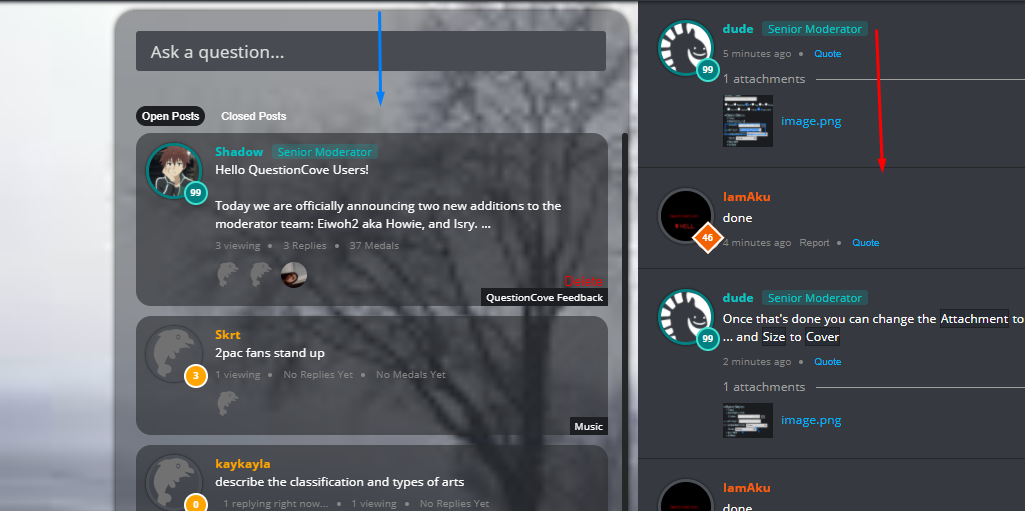
Cool that should be most of it... Do you want to make everything else translucent/transparent? (Blue compared to Red)
 IamAku:
I do it looks best imo
dude:
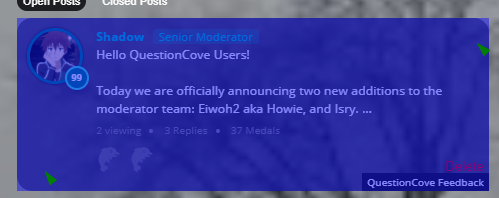
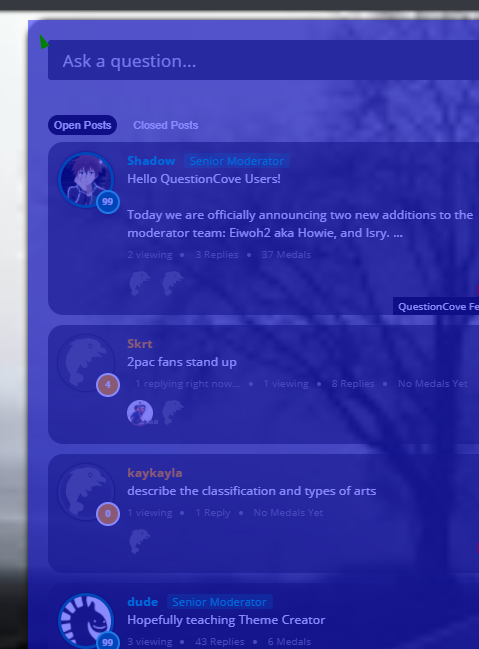
Not much is done here then (: `Resume` the tool Hover over the specific area you want to change. (Be careful on this one, you have to be precise) I will show you the "sweet spots" to hover
 dude:
dude:
If you want to edit transparency in posts, just hover over the area and make sure it is filled
 dude:
dude:
For each part you edit You will either have `rgb(0,0,0)` or `rgba(0,0,0,0)` (Values will vary) If its rgb(), add a comma, and a value between 0 and 1 ex. `rgb(255,255,255, 0.5)` If its rgba(), change the last value to any number between 0 and 1 ex. `rgba(255,255,255,0.7)` They should look the same either way and voila
 freshavacado850:
i need some help pls
dude:
What do you need help with?
Join our real-time social learning platform and learn together with your friends!
VERNEISH:
Two objects are moving along separate linear paths where each path is described by position, d, and time, t.

 Maci:
what are the best stock apps for people who want to start investing?
Maci:
what are the best stock apps for people who want to start investing?
 Twaylor:
genuienly how do i get better self control i keep watcing youtube and theres this
Twaylor:
genuienly how do i get better self control i keep watcing youtube and theres this
 IzzyCookie:
|dw:1792074056138:dw| Uhm, I don't know where to ask this, but I'm in college welding at my community college, and I need help learning vertical welding for
IzzyCookie:
|dw:1792074056138:dw| Uhm, I don't know where to ask this, but I'm in college welding at my community college, and I need help learning vertical welding for

 thehearken:
not sure if this is considered spam, im sorry if it is, but does anyone have tips
thehearken:
not sure if this is considered spam, im sorry if it is, but does anyone have tips